
Choose a Date for New Sections to appear.
This form will allow you to set the date you wish to have new, blank course shells created for all the sections in a given Banner term.
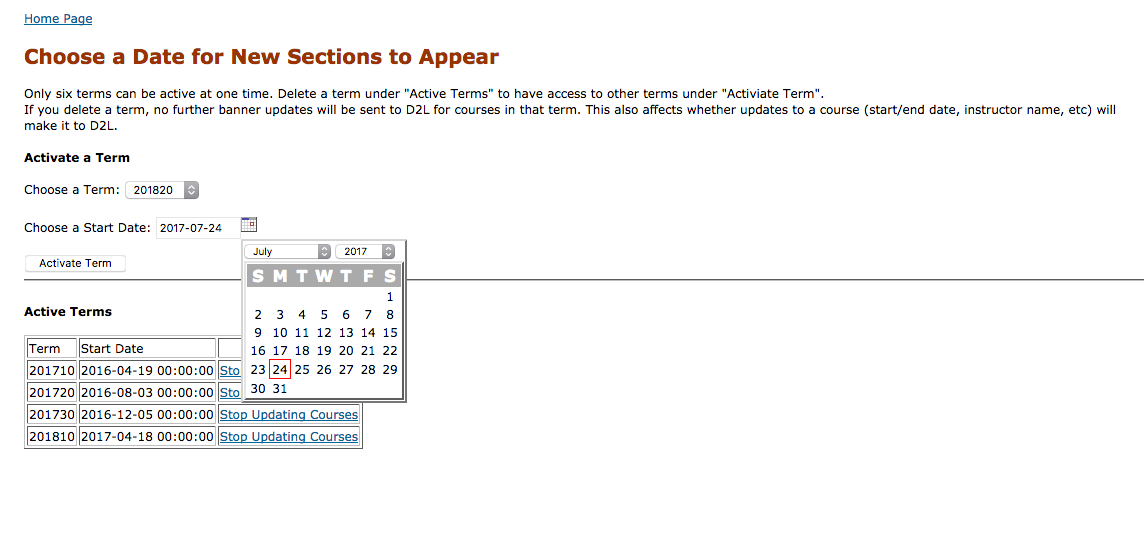
- Use the dropdown menu to select the term you wish to activate.
- Use the calendar to select the activation date.
- Click the Activate button.
Up to six terms can be active at one time. To make an older semester inactive, click the link to “Stop Updating Courses”. This will not change any existing courses in D2L, merely stop the holding tank from receiving any changes to courses in that term.
Update Start/End Dates, Course Title and Instructor’s Name in a D2L Course Title
There are times when colleges wish to adjust the access date to a D2L course shell (whether this is due to a faulty data record or preference). Also, there are occasions when the instructor is changed for a course but a prior instructor’s name remains in the course title or the instructor uses a different preferred name.
This form will walk you through the steps to change any of these values
- Course Start Date
- Course End Date
- Course Title
- Instructor’s Name (note that this only changes the display name in the title. To change the name on a user account, use the “Change the first or last name of a user account” option in the User section of College forms.)
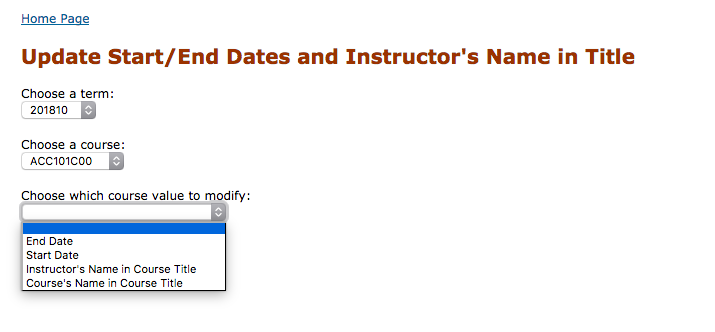
- Select the term
- Select the course section to update
- Select the data item to be updated
- In the next screen, enter the preferred data.
View Changes to Start/End Dates and Instructor’s Name in Title
Any changes to this form will be logged for any of these values
- Course Start Date
- Course End Date
- Course Title
- Instructors Name
Bulk Override Course Start/End Dates
Introduction to the Bulk Override Tool
The Bulk Override tool is a new feature added to the Middleware College Forms that allows the LMS Administrators to adjust the start or end date (plus or minus X number of days) of a set of sections in D2L based on the desired criteria. A term is the only required criteria. LMS Admins may choose other criteria to target a bulk override to parts of term, prefixes, courses, and any mixture thereof. When a new bulk override is created, it takes effect immediately and will overwrite any previous override of the same type (start or end date) should one already exist on a section. When a new section is imported into the Middleware, the Bulk Override tool will examine the section, determine if a bulk override should apply to this section, and apply the most recently created bulk override in the case of multiple applicable bulk overrides.
Bulk Override Usage Instructions
The Bulk Override Tool is accessed from the Middleware College Forms, at the bottom of the “Learning Context Tool” section.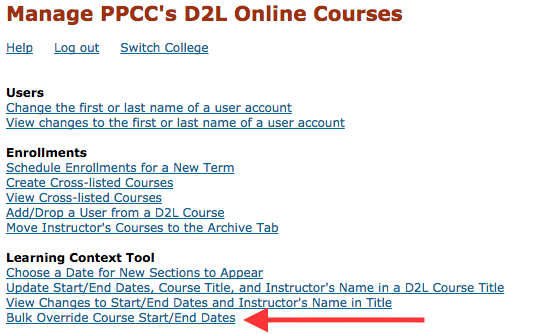
Figure 1 – Screenshot of College Forms with Bulk Override Link
Creating a New Bulk Override
- Select the “Bulk Override Course Start/End Dates” link on the College Forms home page.
- Choose a term you want the Bulk Override to apply to.
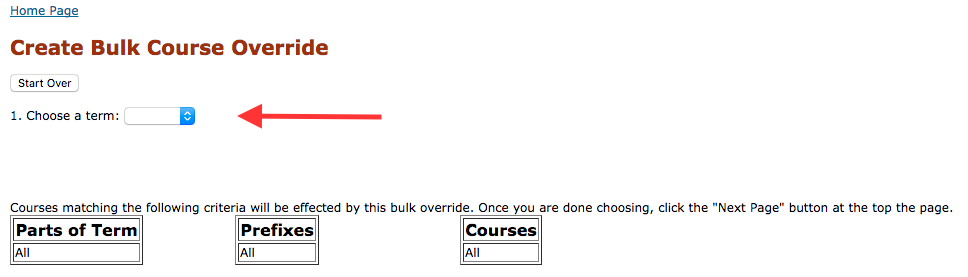
Figure 2 – Screenshot of Create Bulk Override page
- (Optional) Select additional criteria to limit the bulk override to specific parts of term, prefixes, courses, or any combination of the three.
- Click the “Remove” link next to any single criteria you’ve selected to remove it.
- If you want to scrap all your selected criteria, click the “Start Over” button.
- Click the “Next Page” button when satisfied with your selected criteria.
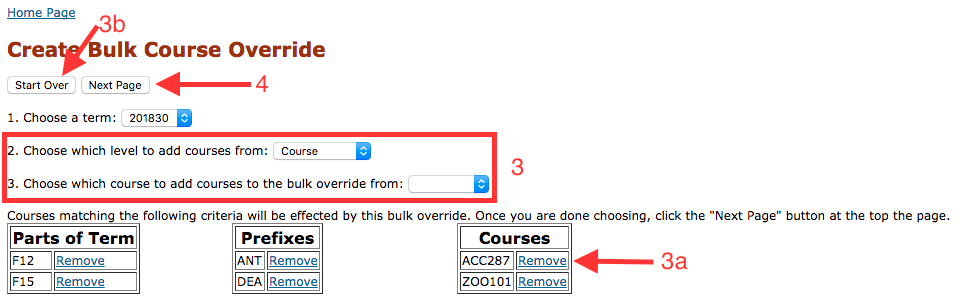
Figure 3 – Screenshot of Create Bulk Override Page showing selected criteria
- Give your bulk override a meaningful name, select which date you want to override, and the number of days to offset the date. Review the “Preview of Affected Sections” table to ensure the expected sections are going to be overridden.
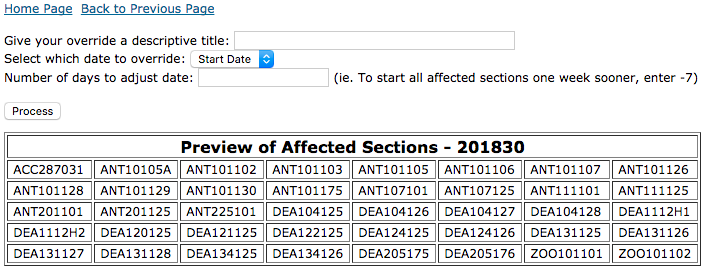
Figure 4 – Screenshot of Create Bulk Override Preview Page
- Click “Process” to apply the Bulk Override into the Middleware. The updates will go to D2L in the next hourly run.
View Bulk Overrides
When a bulk override is put into place, it creates a series of individual overrides on the sections it applies to. Each individual override may be viewed and deleted, just like a normal override, without harming the system. If an individual override was created by a bulk override, that bulk override is listed in the right-most column.
You can also filter the overrides being displayed to a specific term and/or prefix, using the options at the top of the page. Use the “Reset Filters” button to display all overrides again.
To view all the details of a specific bulk override:
- Click on the “View Changes to Start/End Dates and Instructor’s Name in Title” link on the College Forms home page.
- Click on the name of the bulk override that you wish to view
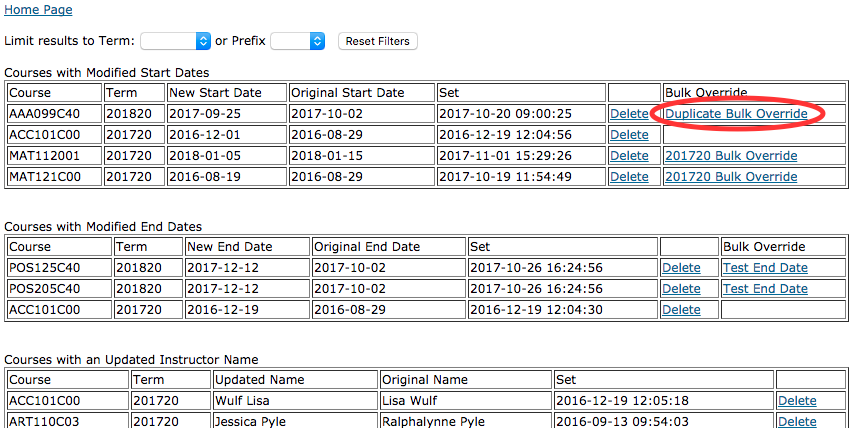
Figure 5 – Screenshot of List Current Overrides Page
- The system will display all the details of that bulk override, including the criteria used to create it and the sections currently affected by it.
- Click the “Delete This Bulk Override” to return all sections to normal that were affected. The changes will go up in the next hourly run to D2L.
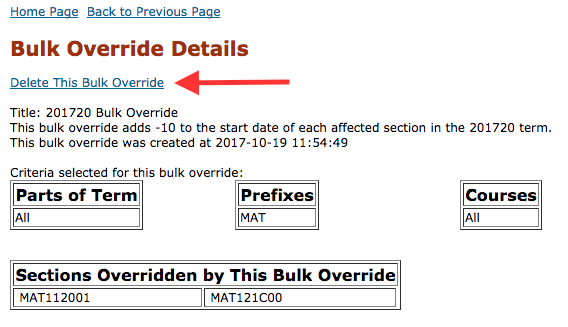
Figure 6 – Screenshot of Bulk Override Details Page
Known Issues
- On the “View Changes to Start/End Dates…” page, the prefix filter does not work for older courses. This is due to the changes necessary to accurately capture prefix data as it came in from Banner. Only sections reported from Banner going forward will have this data captured. Thus, only those sections will properly display using the prefix filter on this page.
- On the “Create Bulk Course Overrides” page, the dropdown criteria list for prefixes and course numbers is built from sections received from Banner after this upgrade is made. This issue should quickly disappear over a short period of time, however, it is possible that some prefixes and course numbers may not be immediately available for use as criteria. Should this cause an issue for you, contact at-support@ccconline.org and we will be able to correct the situation for you.