Schedule Enrollments for a New Term.
Use this link to schedule the date(s) when you want your faculty and students loaded into courses. Faculty will have access to course shells on this date. Students* will have access to course shells on the first day of that course. (*This can be changed via the D2L roles and permissions but is an “all or nothing” change. If students have access to any course before it’s start date, they have access to all their enrolled courses prior to the start date.)
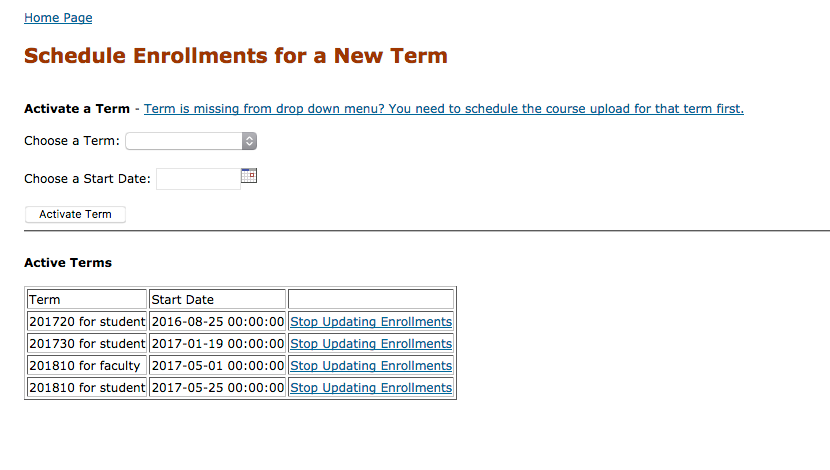
- Use the drop-down menu to select the term and role for which you are setting a date (i.e 201810 for Faculty)
- Use the calendar to select the date for that set of enrollments to be sent to D2L
- Click the “Activate Term” button
- In the table of active terms, you may click the “Stop Updating Enrollments” for any set of enrollments that you wish to discontinue updating.
- You may discontinue faculty enrollment updates after grades are posted
- Leave student enrollment updates active until you are sure that there are not students who are finishing Incomplete Agreements.
Don’t request faculty to be enrolled until at least the day after the sections are created in the LMS (see Learning Context Tool). Otherwise, the choice of when to schedule enrollments varies by college. A few of the options to weigh when sending enrollments may include:
- If instructors build and/or copy their own course content, they may need more advance time. On the other hand, if your college copies in some or all course content, you may want to push faculty enrollments later to allow time to complete the copy processes.
- Some colleges allow student enrollments from the time that student registration is open for the term so students can see the courses listed in the LE. Other colleges wait until a day or two prior to the start of term to send student enrollments.
- Always speak with your registrar to see if there are courses that open earlier than the standard start date for that term.
Create Cross-Listed Courses
Cross-listed courses can be used to
- Combine courses with commonality (for example, GER112/211). This combines the student rosters into 1 cross-listed course, allowing you to assign one instructor and, optionally, use the D2L “group” functions to separate the students and prevent them from seeing “content” not meant for their group.
- Used to organize student groups in specialized, orientation, or project type courses that are semester based, ongoing, or perpetual until student exits the system. For example, some colleges cross-list all departments in a semester into an Online Orientation class.
This process runs overnight. If courses do not generate in that timeframe, email at-support@cccs.edu
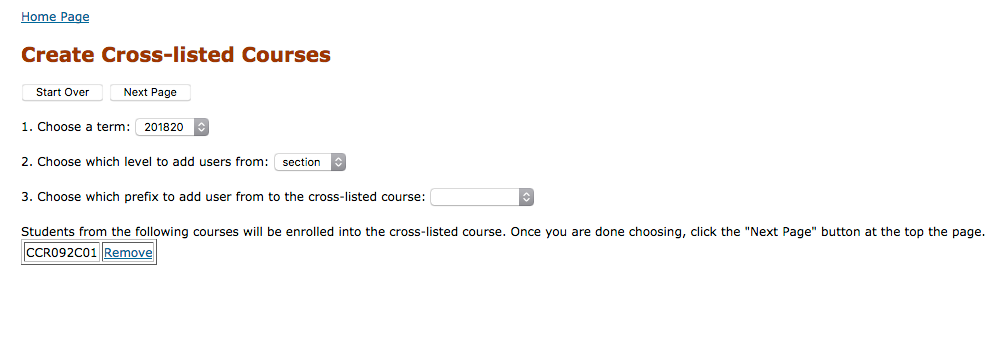
Note that this screenshot reflects the process several steps in.
Options are displayed as prior selections are completed.
Other than the “remove” option noted in step 3, click the Start Over button if you make an incorrect selection.
Day one
Recommended: Search course sections in D2L to verify instructor assignments and start/end dates
- Use dropdowns to select:
- Term (using college-standard codes for terms (FA14 = 201520, SP15 = 201530, etc.)
- Level to add students from:
- Prefix: useful if you want to add every student from a specific department or group of departments (used at some colleges to create an online orientation in which all users are enrolled; Used in some cases to create a common resource for all students in a discipline — i.e.: BIO or combine BIO, CHE, PHY to gather all sciences.)
- Course number: used to gather all students from a common course (useful if all BIO111 students need a common lab guide or if all ENG121 students should have access to a writing lab)
- Section (most common option): used if you want to combine student enrollments from 2 or more specific course sections (for example, used a LOT to combine ENG121 and CCR094 sections into appropriate pairs)
- Select the Prefixes, Courses or Sections you wish to combine from the dropdown menu.
Note that you can remove a selection if you pick the incorrect one. - If you type at a steady pace, you can type to select an option more swiftly
- If you make an incorrect selection, click “remove”
- Click the “Next Page” button at the top of the screen
- Enter the following data:
- Course title: Max of 68 characters (including spaces)
- Start/end dates
- Click the “Process” button
NOTE: It is not possible to add prefixes/courses/sections after having clicked “Process”; either rename the cross-listed course “Bad” and start over or email AT-Support@ccconline.org with a request to correct.
After Cross-listed course generates (next day)
- Log in to D2L
- On My Courses widget, do a blank search to take you to the course search page
- Set the “Semester” to “crosslisted”
- Set “status” to “active”
- This search should bring up all courses that were created overnight
- On any given course, right-click on the pencil and ‘open in new tab’ to open the course offering information page
- Set the semester as appropriate
- NEVER change a course offering’s department association.
- Save the changes to the course offering information
- Go to Classlist
- Enroll the instructor(s)
If the choice is made to not use any given cross-listed section (errors or instructor changes their mind), deactivate the course, set the semester back to crosslisted and unenroll the instructor.
View Cross-Listed Courses
In this view, past and future cross-listed courses are listed in table format. Clicking on the title of a cross-listed course will open an edit screen where you may update the name of a course, and/or update the start and end dates.
If you find that you have created a cross-listed course and missed including a component course or section, contact AT-Support@ccconline.org for assistance in correcting the course.
If the choice is made to not use any given cross-listed section (errors or instructor changes their mind), deactivate the course, set the semester back to crosslisted and unenroll the instructor.
Add/Drop a user from a D2L Course
Override Enrollments & Manage Incompletes
All enrollments and drops need to happen in Banner first.
Enrolling or dropping a student here DOES NOT affect the official Banner records.
Use this form to change students to the Incomplete role or to add or drop a user enrollment that has not processed as expected from Banner to D2L.
All requests will be processed with the next scheduled hourly HT update, but only for active terms.
You must have created the Incomplete role in your LE and contacted at-support@ccconline.org to enable Incompletes at your org before using the Incomplete function here.
KNOWN ISSUE: if the Banner-assigned instructor of a course enrolls as a student and then drops the course, that student-level enrollment drop will also override their instructor enrollment and remove them from the course. If this happens, please contact at-support@ccconline.org as the correction will require direct database access.
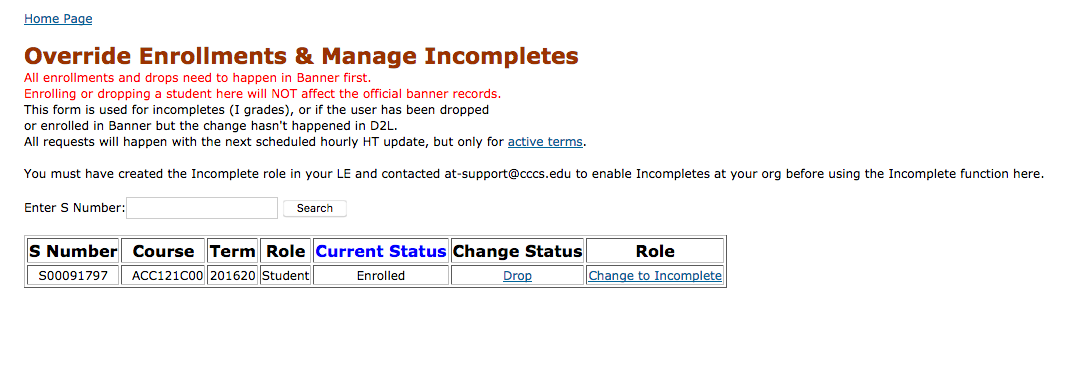
To use: enter the user’s S-number and click Search. The table will show all the user’s enrollment records.
- S Number: should match the string for which you searched
- Course: will list the prefix, number and section for the enrollment record
- Term: the standard CCCS term code (for academic semesters, this is academic year followed by 10=Summer, 20=Fall, 30=Spring)
- Role: the role for the enrollment record
- Current status: Enrolled, dropped or incomplete
- Change status: note that the options here vary contextually based on “Current Status”. If the user is listed as ‘dropped’, this field will read ‘Enroll’. If they are “dropped”, the field will show “Enroll”.
- If Enrolled (and role=student), the far-right Role column will have a link to “Change to Incomplete”.
Move Instructor’s Courses to the Archive Tab
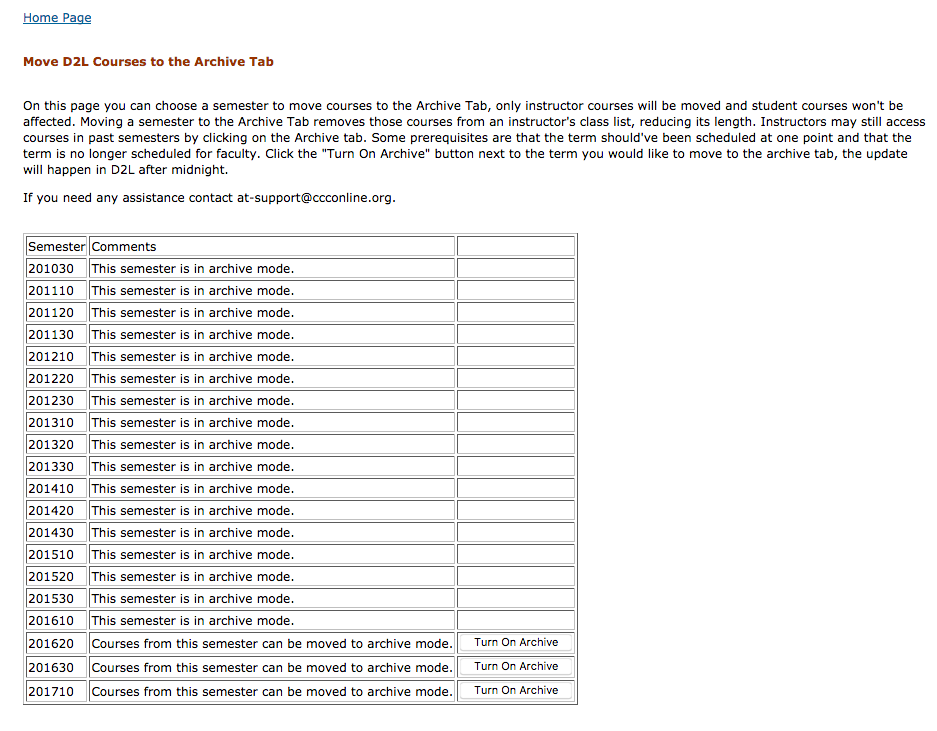
On this page you can choose a semester to move courses to the Archive Tab. This process will convert all instructor enrollments in that term to the Archive role. Only instructor enrollments will be changed. Student enrollments won’t be affected. Moving a semester to the Archive Tab removes those courses to a different role within an instructor’s course list, reducing its length. Instructors may still access courses in past semesters by selecting to view the Archive role.
Some prerequisites are that the term should have been scheduled at one point and that the term is no longer scheduled for faculty enrollment updates. Click the “Turn On Archive” button next to the term you would like to move to the archive tab. the update will happen in D2L on the next overnight process.
If you need assistance, contact at-support@ccconline.org